
Setup guide
Connect your AI assistant to your phone system.
Ask Claude or ChatGPT about your cloud phone system the way you would ask a colleague: who called yesterday, whether the front-desk phone is online, how long callers waited this morning. It looks the answer up live. Setup takes about five minutes.
An AI assistant
Claude on the web, desktop, or Claude Code, or ChatGPT on a paid plan (set up on the web at chatgpt.com).
Your token or enrollment code
The long string of characters issued when your access was set up. Treat it like a password. Don't have one? Get one by email if you were invited, or ask support for access.
Connector URL
https://mcp.viirtue.com/mcp
Your code reaches only the accounts it was issued for. An enrollment code usually works once, so a second assistant needs a new one.
Claude
Add Viirtue to Claude
On the web at claude.ai or in the desktop app. Viirtue is listed in Claude's connector directory, so there is nothing to type.
Find it in the directory
Go to Customize → Connectors, select Discover, and search for Viirtue.
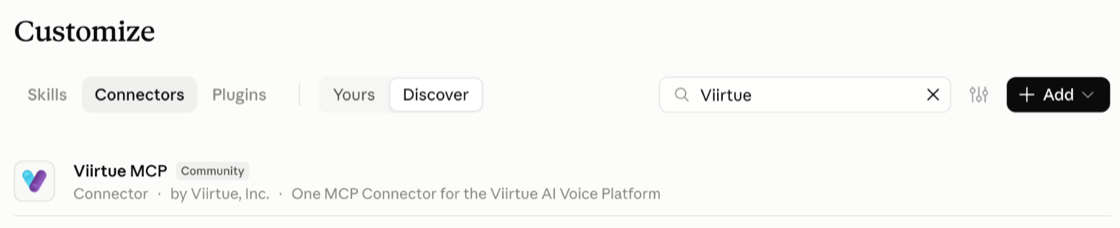
Connect
Open the listing and select Connect. Viirtue's sign-in page opens: see Sign in below.
Switch it on in a chat
In a new chat, open + → Connectors and make sure Viirtue is switched on.
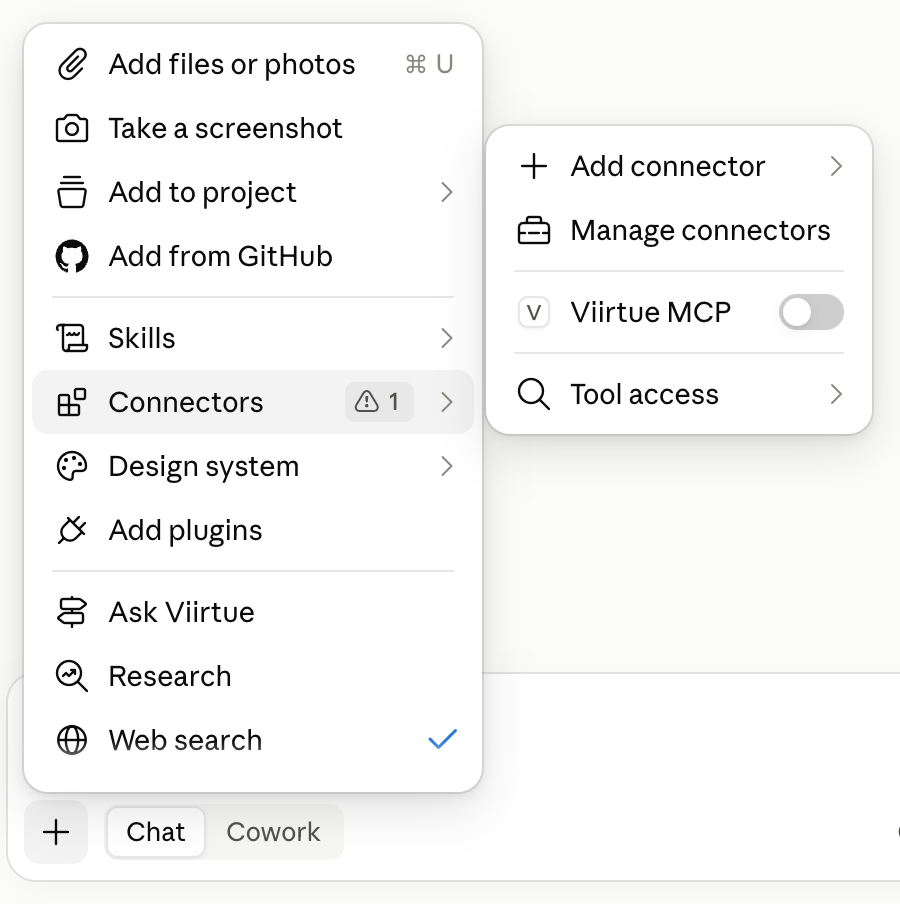
Or add it by URL
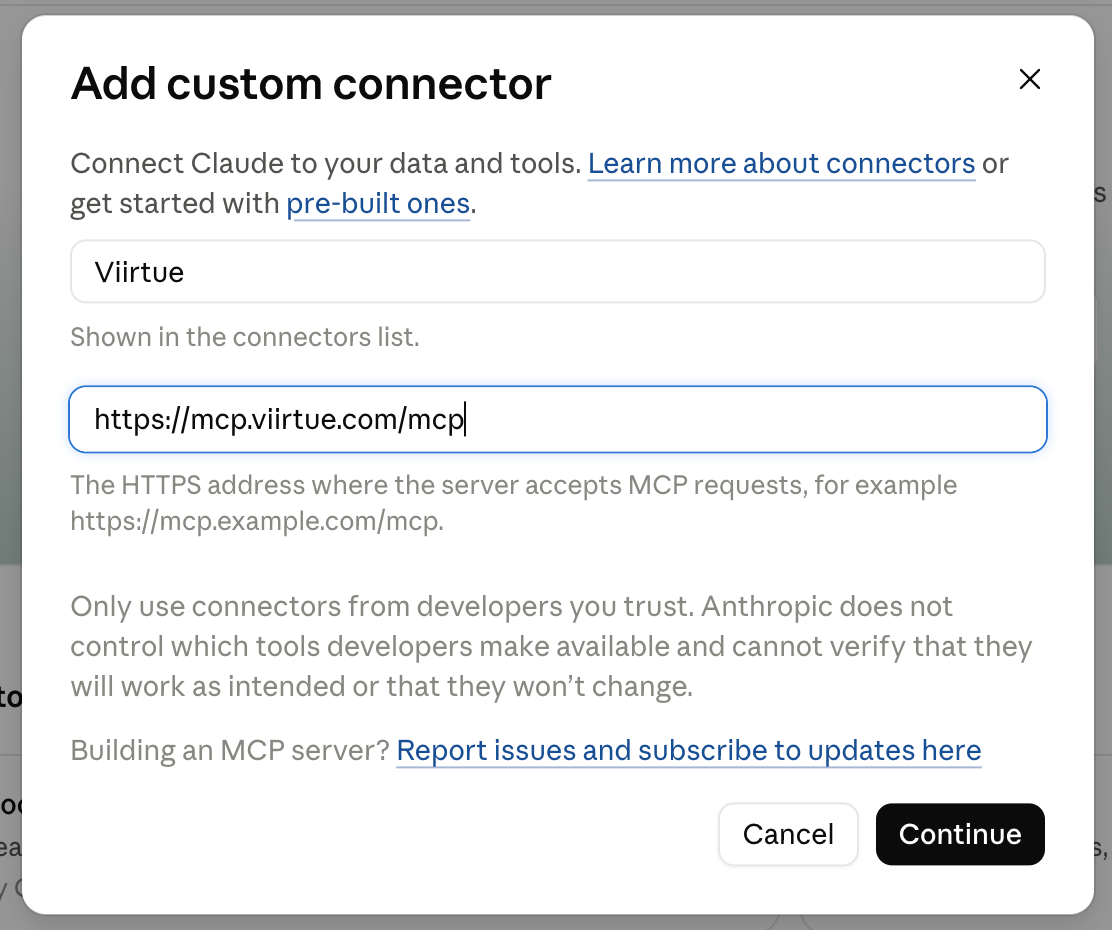
Add a custom connector
In Customize → Connectors, select + Add, then Add custom connector.

Paste the URL
Enter a name such as Viirtue and the connector URL, select Continue, leave the sign-in settings as they are, and select Add. If the sign-in page doesn't open on its own, select Connect.
Claude Team and Enterprise
An organization Owner adds or allows the connector once under Organization settings → Connectors; each person then selects Connect in Customize → Connectors.
Claude Code
claude mcp add --transport http viirtue https://mcp.viirtue.com/mcp
Then type /mcp and choose the server to sign in.
ChatGPT
Add Viirtue to ChatGPT
Paid plans. Set it up on the web at chatgpt.com; the desktop app picks it up from your account afterwards.
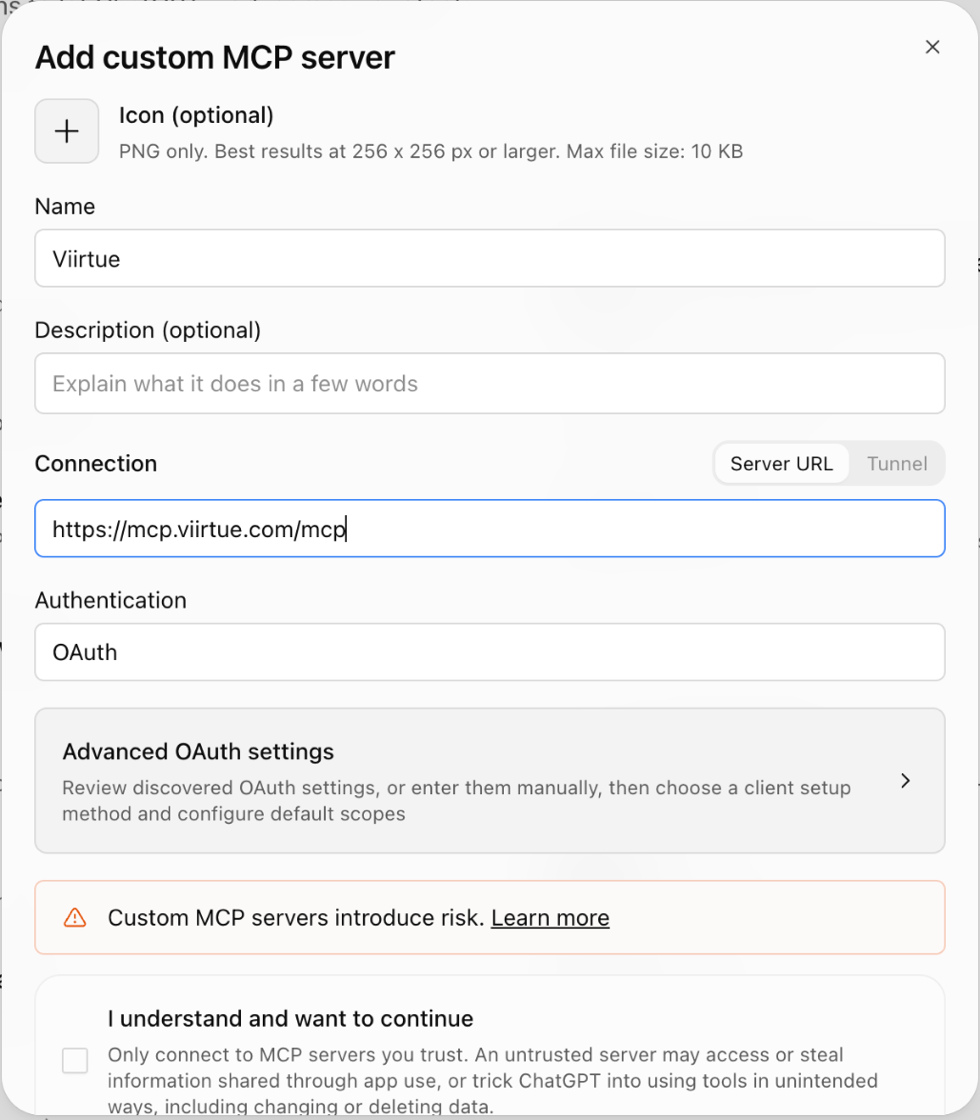
Add a custom MCP server
Go to Plugins, select Add, then Add custom MCP server.
No such option? Turn on developer mode: in Settings, search for "developer". In a work or school workspace, an administrator may need to allow it.
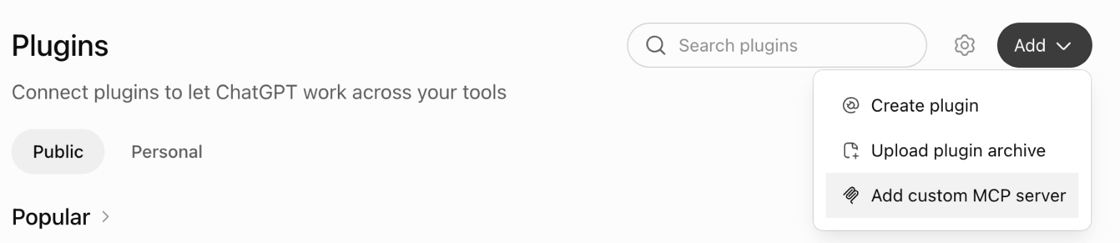
Fill in the form
Name it Viirtue. Under Connection, keep Server URL selected and paste the connector URL. Leave Authentication on OAuth.
Create it
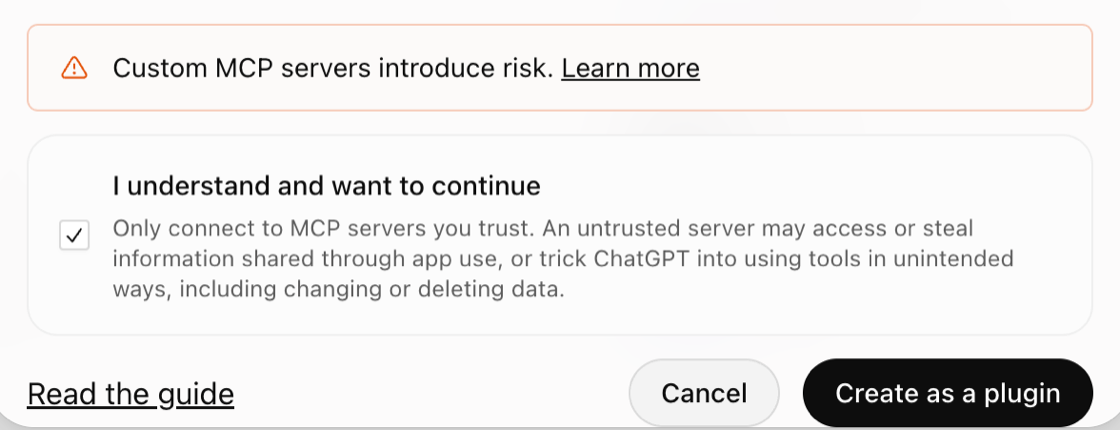
Tick I understand and want to continue and select Create as a plugin. Viirtue's sign-in page opens: see Sign in.
Pick it in every new chat
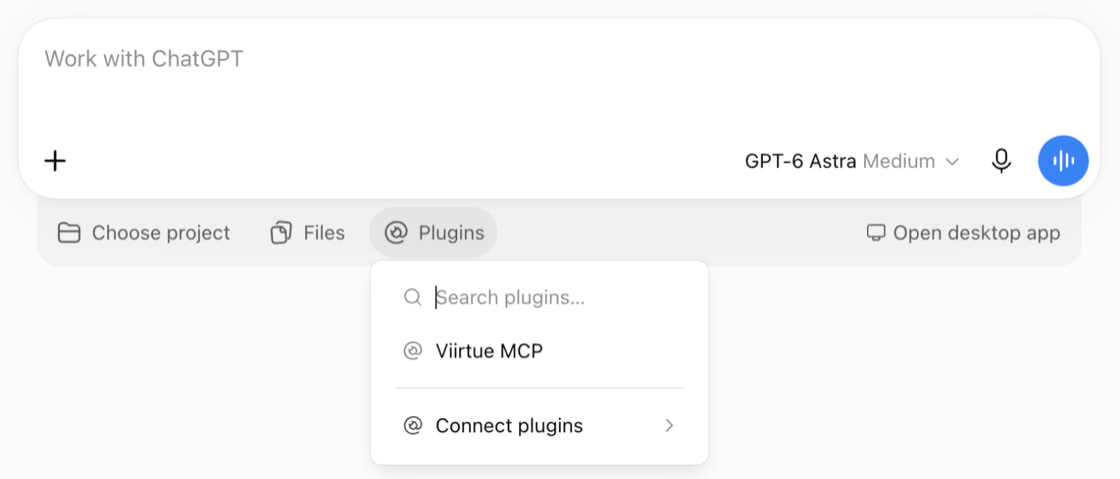
A plugin you added yourself starts switched off. Select the + next to the message box (or Plugins under it, in Work mode) and pick it by the name you gave it.
Not the desktop app's MCP servers screen
The ChatGPT desktop app's Settings → MCP servers configures Codex, not ChatGPT. A server added there looks installed but never appears in a chat.
Codex
codex mcp add viirtue --url https://mcp.viirtue.com/mcp
Then codex mcp login viirtue, restart Codex, and start a new thread. In the
Codex desktop app: Settings → MCP servers → Add server → Streamable
HTTP.
Both assistants
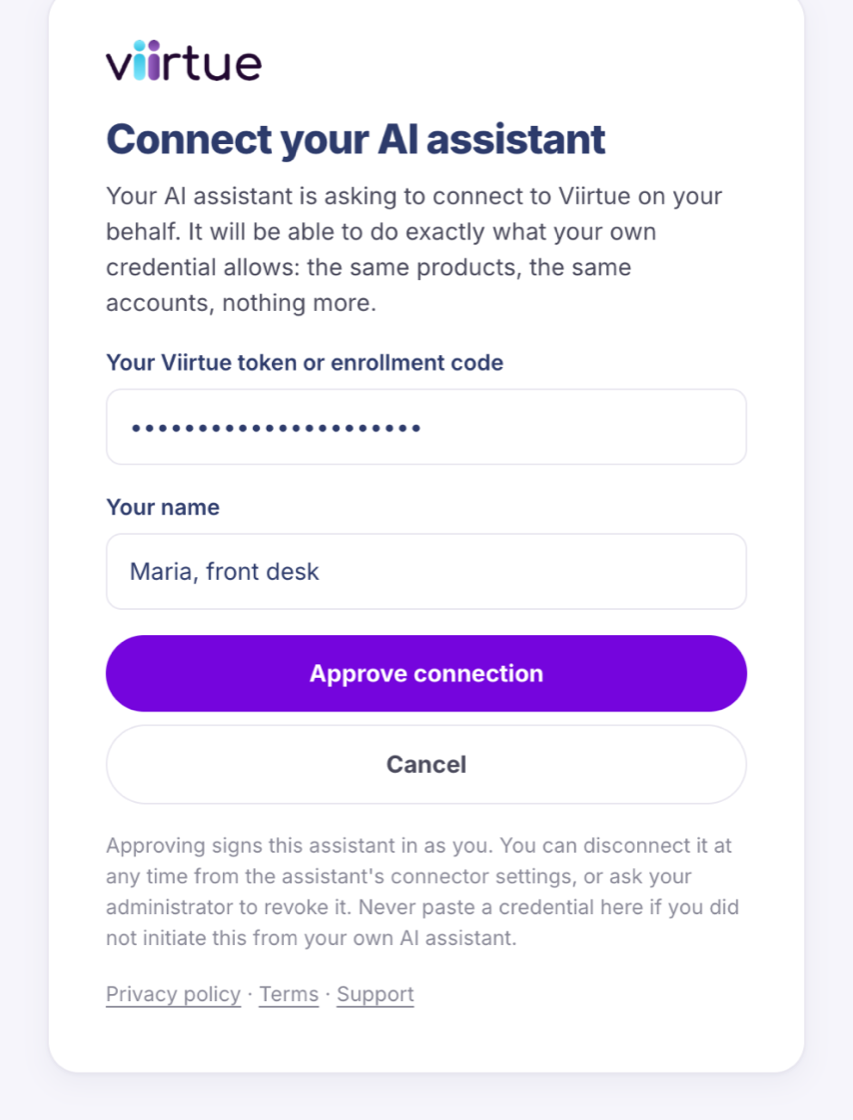
Sign in
- The page names the app you are connecting, such as claude.ai or chatgpt.com. Continue only if it is the app you started from.
- Paste your code into Your Viirtue token or enrollment code.
- Type your name or role into Your name, such as "Maria, front desk". It tells your administrator whose connection this is.
- Select Approve connection.
No code?
Get a code by email
If your access was set up with an email invitation, the sign-in page can send you a fresh code. It works for an address already on file, when you are connecting from Claude, ChatGPT, or an app on this computer.
Ask on the sign-in page
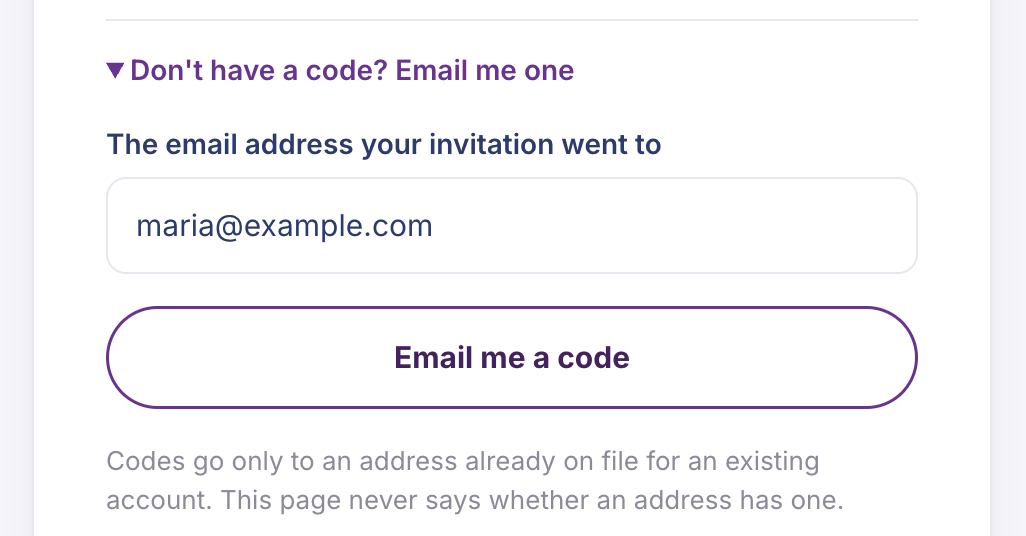
Below Approve connection, select Don't have a code? Email me one, enter the address your invitation went to, and select Email me a code.
Look for the confirmation
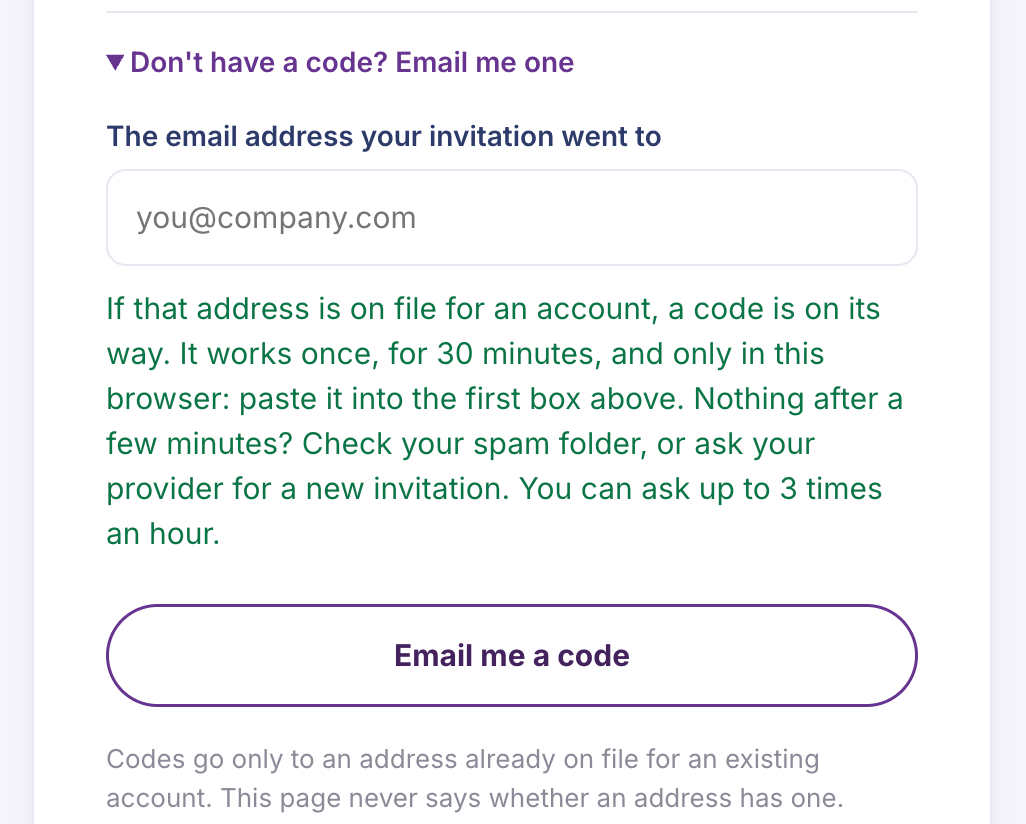
The page says a code is on its way. To protect your privacy, it says the same thing whether or not the address is on file.
Paste the code from the email
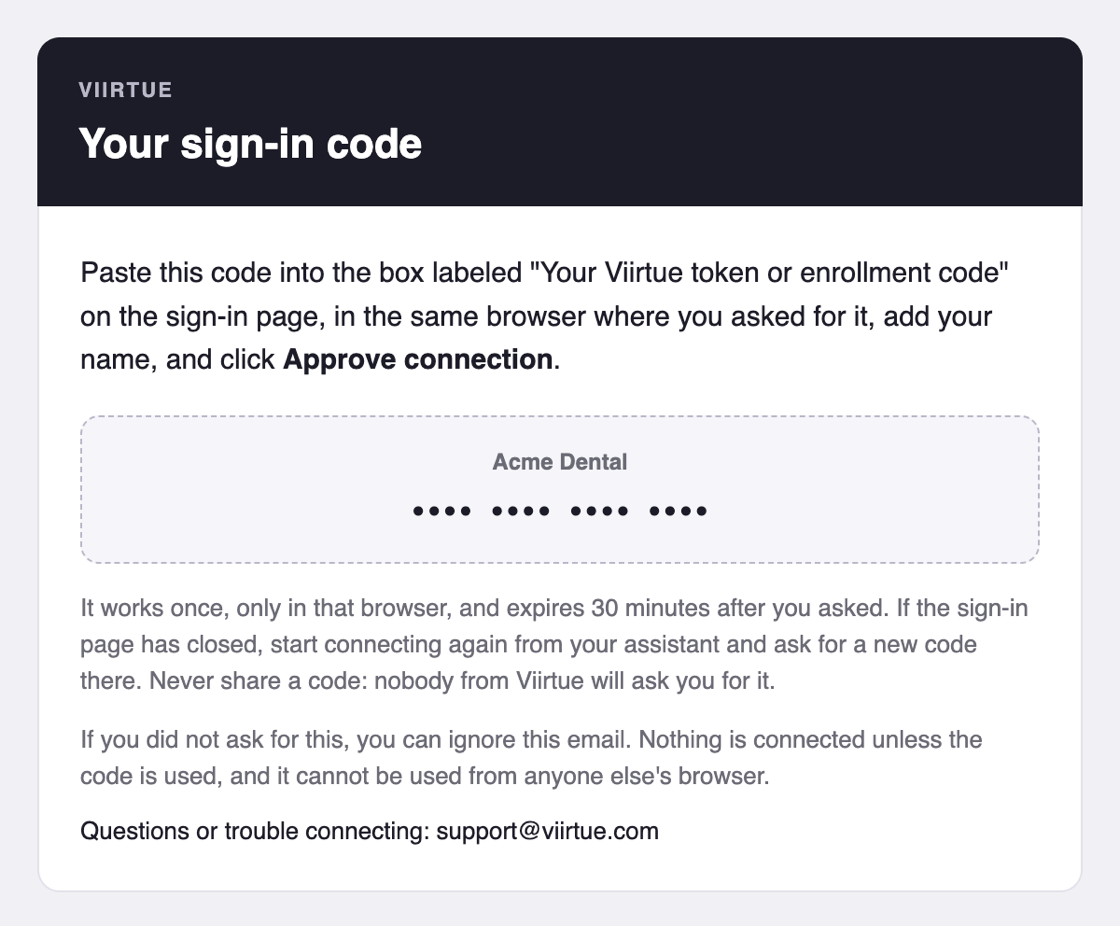
Open the email titled Your Viirtue sign-in code. Paste the code into Your Viirtue token or enrollment code on the same sign-in page, add your name, and select Approve connection.
It works once, only in the browser where you asked, and expires soon after. Nothing after a few minutes? Check your spam folder.
Never got an invitation?
The email option cannot create an account. Ask support for AI assistant access, and say who it is for, such as "Maria, office manager".
Have a token or enrollment code already?
Paste it into the first box on the sign-in page instead; you don't need an emailed code.
Questions to try
Ask it like you'd ask a colleague
- How many calls did we miss yesterday, and who were they for?
- Are all our desk phones online right now?
- How long did callers wait in the support queue this morning?
- What happens to calls that come in after hours?
- Did the fax we sent yesterday go through? If not, why?
- What did our AI voice agents handle this week?
No special wording is needed. Say the time frame ("last Tuesday", "this month"), ask follow-up questions, and ask for the format you want ("put that in a table").
Good to know
What it can and cannot do
Almost everything is read-only.
The few actions that change anything, such as updating a user's profile or logging a queue agent in or out, are marked as actions, and your assistant asks you to confirm before running them. It cannot delete anything or place calls.
Recorded content follows your organization's compliance policy.
Call recordings, transcripts, voicemail audio, message text, and fax pages can be blocked, delivered with identifying details masked, or delivered in full. When your assistant says something is withheld by policy, that is the setting working, not an error.
Every lookup is logged.
Your administrator can revoke a connection at any time.
Troubleshooting
If something looks off
"That token or enrollment code was not recognized."
Copy the code again, watching for missing characters or a trailing space. Enrollment codes expire and can run out of uses; if yours no longer works, ask support for a new one, or get one by email.
The connector is added, but your assistant doesn't use it.
Start a new conversation. In ChatGPT, select the + next to the message box (or Plugins under it, in Work mode) and pick Viirtue; it starts switched off in every chat. In Claude, check that it is switched on under + → Connectors.
Viirtue doesn't show up in Claude's connector directory.
In Customize → Connectors, select Discover and search for Viirtue. On Claude Team or Enterprise, an organization Owner may need to allow it. You can always add it by URL instead.
ChatGPT's Add menu has no Add custom MCP server.
Developer mode is off, or your plan or workspace doesn't allow custom servers. In ChatGPT's Settings, search for "developer" and turn it on; on a work or school workspace, ask its administrator.
The plugin shows in the ChatGPT desktop app's MCP servers list but never in a chat.
That screen configures Codex. Remove it there and add the plugin on the web at chatgpt.com instead.
Your assistant asks you to sign in again, or says the connector needs attention.
In Claude, open the connector in Customize → Connectors and select Connect (or Reconnect). In ChatGPT, open Settings → Plugins and select Reconnect, or remove the plugin and add it again. Then sign in with your token. If you signed in with an enrollment code that no longer works and the sign-in page offers Don't have a code? Email me one, enter the address your invitation went to: the emailed code works once, only in that browser, and expires soon after. Otherwise ask support for a new one.
A kind of data is missing, such as fax or AI voice agents.
That product isn't turned on for your account. Ask support.
A newly announced feature doesn't appear.
Your assistant keeps the list of available actions from when the connector was added. Remove the connector and add it again to refresh it.
Answers are slow or incomplete.
Ask about a shorter time period, or a single queue or extension.
It worked before, and now every request fails.
Your access may have been turned off. Contact support.
Support
Need help?
Contact support. Include the question you asked and roughly when, so the request can be found in the log.